How to Set Up QR Code Ordering for Your Cafe in the Philippines
QR code ordering used to feel like something only the big mall chains could pull off. Not anymore. If you run a cafe, a milk tea spot, or a small restaurant anywhere in the Philippines, you can have customers scanning a QR at their table, browsing your menu, and paying via GCash — without buying a single new gadget. Here is exactly how to set it up, step by step.
Why QR ordering makes sense for a PH cafe
Picture a busy Saturday at your counter. The line is six people deep, one barista is making drinks, and your other staff is stuck taking orders and counting change. QR ordering quietly removes that bottleneck. Customers scan, order, and pay from their own phones, so your team can focus on making good kape barako and wintermelon milk tea instead of repeating "next, po."
- Shorter lines: diners order at their own pace from the table.
- Fewer wrong orders: customizations are typed in, not shouted across a noisy room.
- No app download required: the menu opens in the phone's browser the moment they scan.
- Higher average orders: a full visual menu with add-ons can gently nudge a customer toward the extra espresso shot or the pandesal on the side.
Step 1: Set up your menu first
Before any QR code matters, your menu has to live online. Start by creating your business profile and adding your items — name, price, a short description, and a photo if you have one. Group them the way your printed menu already works: Coffee, Non-Coffee, Pastries, Add-ons.
Spend the most time on customizations, because this is where QR ordering shines. Set up your size options, milk choices, sugar levels, and extras with their price adjustments. A customer ordering an iced spanish latte can pick oat milk and an extra shot themselves, and the exact total lands in your kitchen with zero back-and-forth.
Step 2: Turn on the payment methods you actually use
You decide how customers pay. The options that fit most PH cafes:
- GCash, Maya, and QRPH — the e-wallets your customers already use daily.
- Cash — for walk-ins who still prefer to pay at the counter.
The default flow is direct payment with manual proof: the customer pays to your e-wallet and uploads a screenshot, and your staff confirms it on the orders board. There is no commission taken per order — what the customer pays is what you receive. If you are on the Pro or Enterprise plan, you can also opt into auto-verified GCash so payments confirm themselves and your staff skips the manual check entirely.
Step 3: Generate and place your QR codes
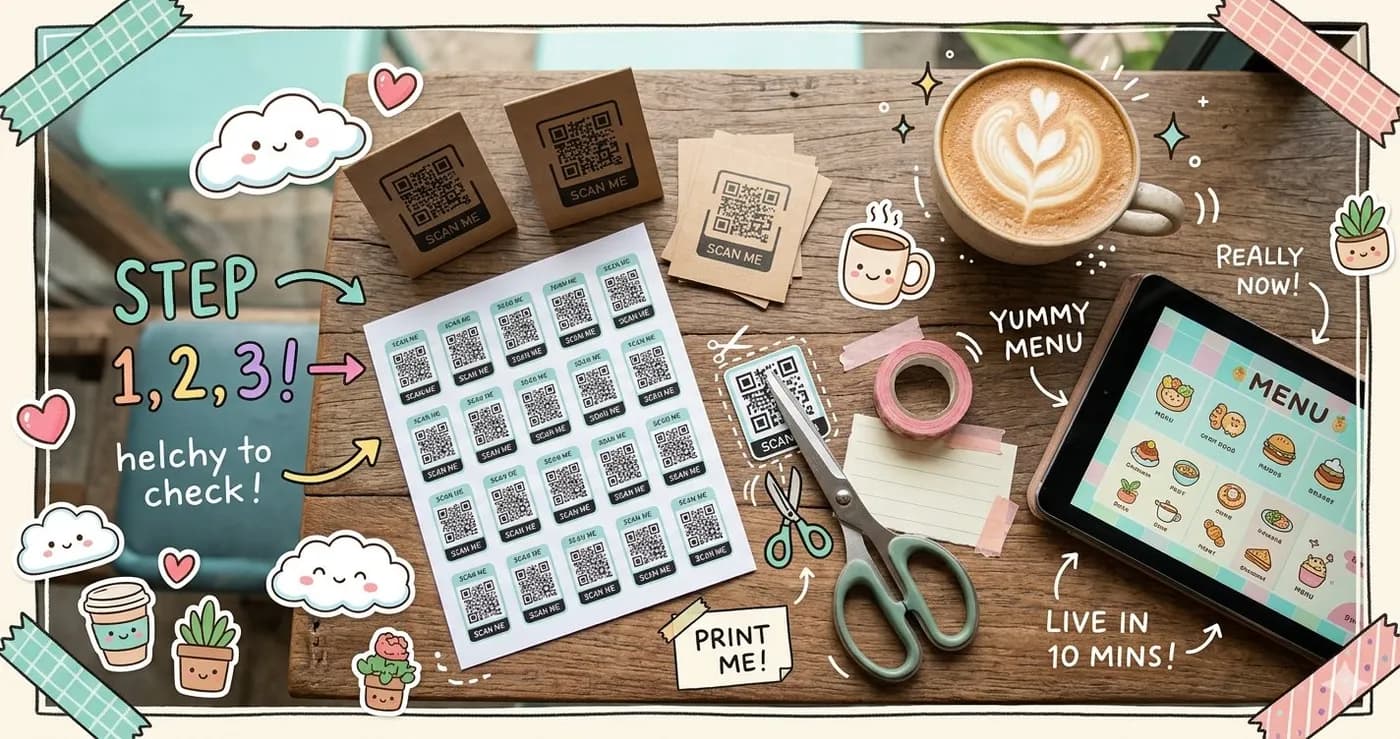
Once your menu and payments are live, generating your QR code takes a few clicks. Download it, then think carefully about placement — this is the part owners often rush.
Where to put your QR codes
- On each table: a small acrylic stand or a laminated card so dine-in guests can order without leaving their seat.
- At the counter: a larger printout for the queue, so people can start ordering while they wait.
- On the storefront or window: useful for grab-and-go regulars who want to order before they even walk in.
Print it clean and big enough to scan from arm's length. A tip: add a one-line instruction beside it — "Scan to order, po!" — so first-timers know exactly what to do.
Step 4: Get your floor running with the live orders board
When a customer places an order, it appears instantly on your orders board. Your staff sees the items, the customizations, the payment status, and any special instructions in one place. As drinks get made, they move the order along — from confirmed, to preparing, to ready.
For busier shops, the staff app turns a spare tablet into a dedicated screen for the floor and kitchen, so your barista station always has the latest queue without anyone hovering over the counter. Toggle an item's availability the moment you run out of oat milk, and it disappears from the customer menu in real time — no more taking an order you cannot fulfill.
Step 5: Watch, adjust, and keep customers coming back
Give it a week, then look at your analytics. Which drinks sell most? What is your busiest hour? Use that to plan staffing and your next promo. You can also reply to reviews directly, and set up loyalty points and cashback so a regular who orders three times a week has a reason to make it four.
The beauty of starting digital is that everything is adjustable. Change a price, add a seasonal item, or run a buy-one-take-one — it reflects on every customer's phone the next time they scan, with no reprinting.
Getting started without overthinking it
You do not need to launch with a hundred items and every bell and whistle. Add your bestsellers, turn on GCash and cash, print one QR for the counter, and watch your first few orders come through. You can always expand once your team is comfortable.
There is a free tier that handles up to around ten daily customers, which is plenty to test the waters, and paid plans start from ₱999/mo as you grow. No hardware to buy, no lock-in, and you can cancel monthly anytime.
Ready to set it up? See how it works for your cafe or compare the plans and start taking QR orders this week.
Share this article